







Your hand leaves the keyboard roughly two thousand times a day — reaching for the mouse to copy, paste, switch tabs, save. Each trip costs about two seconds. That doesn’t sound like much until you realize it’s the difference between finishing the assignment at 10 p.m. and finishing it at midnight.
Keyboard shortcuts are the closest thing to a legal study hack: no app to install, no subscription, no talent required. Just a handful of key combos that turn fiddly chores into reflexes. Here’s how a shortcut-powered study day actually looks.

8:00 a.m. — The universal six (learn these first)
If you learn nothing else, learn these six. They work in basically every program on Windows, Mac, and Linux — the Mac version just swaps Ctrl for Cmd:
- Ctrl+C / Ctrl+V / Ctrl+X — copy, paste, cut. You know these. Now actually use them instead of right-clicking.
- Ctrl+Z / Ctrl+Y — undo, redo. The undo key is a time machine; use it without shame.
- Ctrl+S — save. Hit it like a nervous tic. Every few minutes. Your future self, staring at a crashed laptop, will be grateful.
- Ctrl+F — find. Searching a 60-page PDF for one term beats scrolling for ten minutes.
- Ctrl+A — select all. Formatting an entire document starts here.
- Ctrl+P — print. Obvious, but plenty of students hunt through menus for it.
Honest math: say you copy-paste fifty times a day and each mouse round-trip costs you four seconds versus half a second on keys. That’s roughly three minutes a day — over a semester, that’s an entire evening handed back to you. And that’s just one shortcut.
10:30 a.m. — Browser mastery (where students actually live)
You live in the browser: research tabs, the course portal, Google Docs, YouTube lectures. These are the ones that change your life:
- Ctrl+T / Ctrl+W — new tab, close tab. The open/close rhythm of research.
- Ctrl+Shift+T — reopen the last closed tab. Accidentally closed the source you needed for your bibliography? This is resurrection in key form.
- Ctrl+Tab / Ctrl+Shift+Tab — hop between tabs without touching the mouse.
- Ctrl+L — jump straight to the address bar. Type and go.
- Ctrl+Shift+N (or Ctrl+Shift+P in Firefox/Edge) — incognito/private window. Useful when you want to check how a site looks without your login, or research a gift on a shared computer.
Bonus for tab hoarders: Ctrl+1 through Ctrl+8 jumps directly to tabs by position, and Ctrl+9 always lands on the last tab. Keep your most-used tabs pinned in fixed positions and you’ll navigate like a pianist.
1:00 p.m. — Writing and editing without the mouse
Essays are where the mouse really slows you down. Text-navigation shortcuts turn editing from a pointing exercise into a flow state:
- Ctrl+Arrow keys — jump word by word instead of character by character.
- Ctrl+Shift+Arrow keys — select word by word. Combine with typing to replace whole phrases instantly.
- Ctrl+Backspace / Ctrl+Delete — delete entire words at once.
- Ctrl+Home / Ctrl+End — teleport to the start or end of the document.
- Ctrl+B / Ctrl+I / Ctrl+U — bold, italic, underline. Format as you type, don’t format after.
And the screenshot shortcut — Win+Shift+S on Windows, Cmd+Shift+4 on Mac — is criminally underused by students. Snip a diagram from a lecture slide, paste it straight into your notes. If your notes live in Obsidian or Notion, screenshots paste right in and become searchable study material.

4:00 p.m. — Window juggling (stop alt-tabbing blindly)
Research usually means a PDF open next to a document, or a lecture video beside your notes. Win+Arrow keys snaps windows to halves and quarters of the screen — left half, right half, done. On Mac, the same idea lives in the green fullscreen button’s menu, or a free tool like Rectangle.
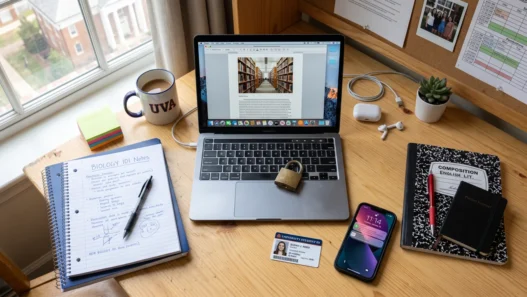
Alt+Tab (Cmd+Tab on Mac) switches between apps, and Win+D shows the desktop instantly when someone walks up behind you during a study break. Win+L locks your computer — use it every single time you leave your laptop in the library. Every time.
File management has its own gems: F2 renames the selected file (no right-click menu), Win+E opens a new file explorer window, and Shift+Delete deletes permanently, skipping the recycle bin — use with care.
Bonus round: shortcuts inside the apps you already use
Universal shortcuts get you far, but the apps students live in have their own power keys. In Google Docs, Ctrl+K inserts a link without breaking your typing flow, and Ctrl+Alt+M drops a comment — perfect for flagging “check this source later” while drafting. In Word, F7 runs spell check over the whole document and Ctrl+Shift+C copies formatting so your headings finally match.
Spreadsheet users, you’re not forgotten: Ctrl+; stamps today’s date into a cell (expense trackers, lab logs), and Ctrl+Arrow jumps to the edge of your data instead of scrolling through five hundred rows. And everywhere: Esc is the universal “get me out of here” — close dialogs, exit fullscreen, cancel a drag. When in doubt, Esc.
How to actually learn them (the one-a-day method)
Here’s why most shortcut lists fail: you read them, nod, and forget them by dinner. The fix is embarrassingly simple — learn one shortcut per day. Write it on a sticky note, stick it to your monitor, and force yourself to use it instead of the mouse all day. By day two it’s a reflex; by day thirty you have thirty.
Start with the ones that hurt most: whichever mouse action you catch yourself repeating is the next shortcut to learn. Most programs show the shortcut right in the menu next to each command — glance at it once, and you’ve started.
One more thing: Ctrl+Shift+Esc opens Task Manager directly on Windows. When your laptop freezes mid-essay at 11:58 p.m., this is the shortcut that saves the deadline. You’re welcome in advance.
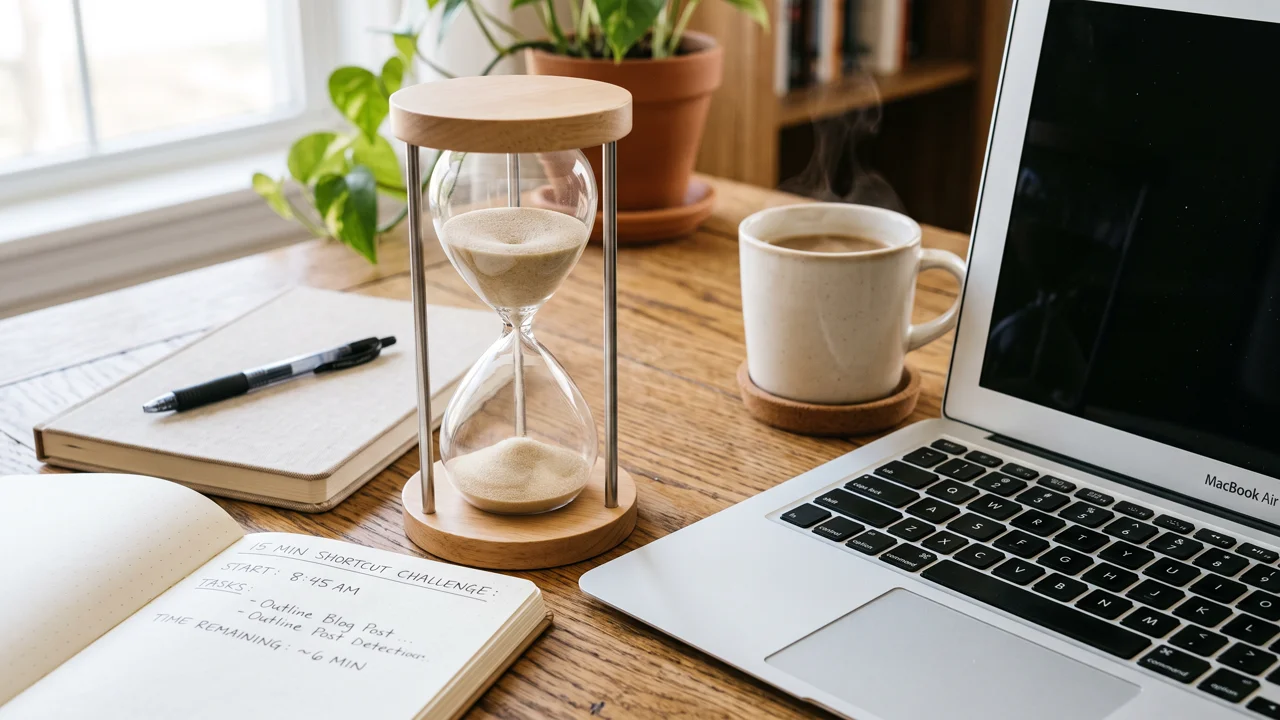
The 15-minute challenge
Pick five shortcuts from this article — the six universals are a fine start — and use nothing else for them today. No right-click copying, no menu-diving for save. It’ll feel slower for about an hour. Then your hands will stop asking your brain for permission, and that’s when the hours start coming back.