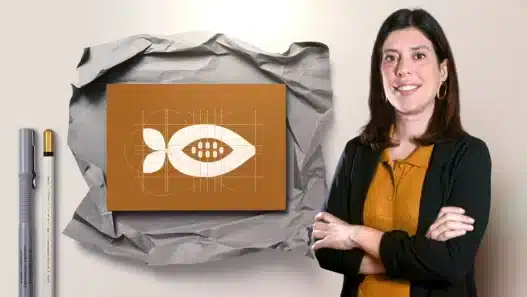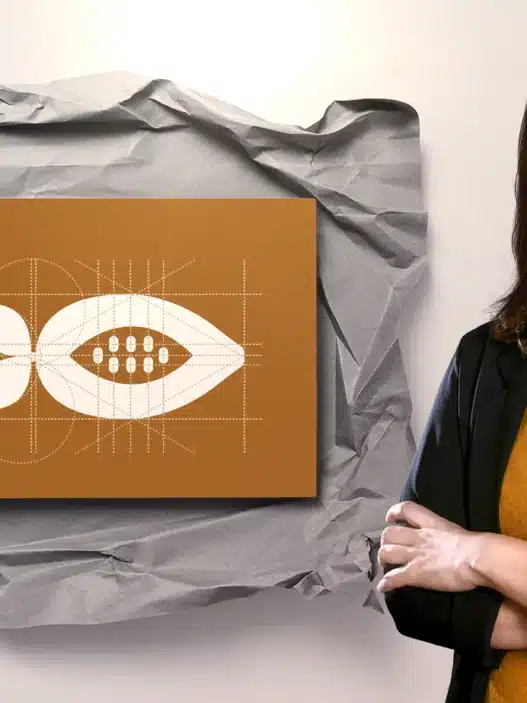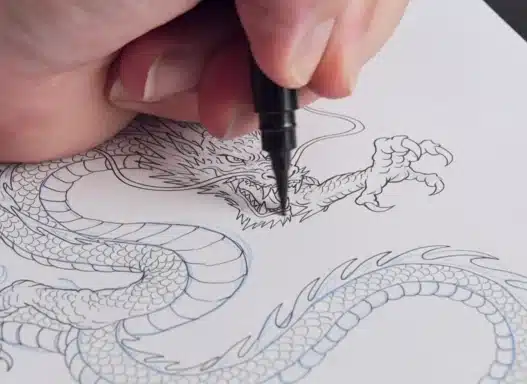






Mara had been the “can you make me a logo?” person in her friend group for years. She’d cobble something together in a free online editor, wrestle with blurry edges, and send it off feeling a little embarrassed. Then one Saturday she opened Adobe Illustrator for the first time, and within a month she was redesigning her cousin’s bakery branding — clean lines, crisp curves, a logo that looked the same on a business card and a shop sign. The difference wasn’t talent. It was learning the right tool properly.
That’s the story behind most Illustrator success stories: a motivated beginner, a structured course, and a few weeks of consistent practice. If you’ve ever wanted to create logos, posters, icons, or illustrations that look genuinely professional, here’s your complete guide to learning Adobe Illustrator online.
What Adobe Illustrator Actually Is (and Why Designers Swear By It)
Adobe Illustrator is a vector graphics editor. That one word — vector — is the whole reason it matters. Unlike Photoshop, which works with pixels, Illustrator works with mathematical paths. A circle in Illustrator isn’t made of dots; it’s a formula describing a circle. That means you can scale a logo from a favicon to a billboard and it stays perfectly sharp.
This is why Illustrator is the industry standard for:
- Logos and brand identities — they need to work at every size
- Icons and UI elements — crisp at any resolution
- Posters, flyers, and print design — precise typography and layout
- Illustration — flat illustration styles, infographics, patterns
- Packaging and signage — real-world production files
You don’t need to be an artist to use it well. Graphic design is as much about thinking as drawing — choosing the right typeface, balancing a layout, picking colors that work together. Illustrator is the workshop where those decisions become real.
What a Good Illustrator Course Covers
Not all courses are built the same. A solid beginner course should walk you through these fundamentals in roughly this order:
1. The workspace and basic tools
Artboards, panels, the selection tools, and the difference between fill and stroke. This is the boring-but-essential week. You’ll feel clumsy. That’s normal — everyone does.
2. Shapes, the Pen tool, and paths
The Pen tool is Illustrator’s signature skill, and it’s the one that makes beginners want to quit. Drawing smooth Bézier curves takes practice. A good course gives you tracing exercises that make the Pen tool click — and once it clicks, everything else gets easier.
3. Color and gradients
Swatches, the color picker, gradients, and how to build a palette that doesn’t look like a rainbow exploded. Expect to learn color theory basics alongside the technical how-to.
4. Typography
Working with text, choosing and pairing fonts, adjusting tracking and kerning, and converting type to outlines for logo work. Typography alone can carry an entire design career.
5. Layers, masks, and effects
Organizing complex files, clipping masks, and using effects without overdoing them. This is where your work starts looking polished instead of homemade.
6. A real project
The best courses end with you designing something complete — usually a logo and a small brand identity. A finished project matters because it becomes the first piece in your portfolio, which is what actually gets you work.
How to Choose the Right Course
There are dozens of Illustrator courses across online course platforms and course marketplaces, ranging from free YouTube series to structured multi-week programs. Here’s how to pick:
- Check the instructor’s actual work. Can they show professional projects, not just tutorial graphics? If their portfolio is weak, their teaching probably is too.
- Look for project-based learning. Courses where you build real pieces beat courses where you just watch someone click through menus.
- Match the course to your goal. A course focused on logo design differs from one focused on illustration. Know what you want to make.
- Read recent reviews. Software updates fast. A course from 2019 might teach an interface that barely exists anymore.
- Start with the free tier if you’re unsure. Many platforms offer free introductory lessons. Use them to test whether the teaching style works for you before paying.
If you’re completely new to learning online, our guide on how to choose your first online course without wasting money walks through the decision in more detail.
A Realistic 30-Day Practice Plan
Courses teach you techniques; practice makes them stick. Here’s a plan that works for most beginners:
Days 1–7: Get comfortable. Do the course lessons and recreate everything the instructor does. Don’t try to be original yet — copy shamelessly. Your goal is muscle memory.
Days 8–14: Trace and rebuild. Find logos and posters you admire and try to rebuild them from scratch. This is the fastest way to learn how professional work is constructed.
Days 15–21: The Pen tool gauntlet. Spend 20 minutes a day just on Pen tool exercises — tracing letterforms, drawing smooth curves, recreating icons. It’ll feel tedious. It works.
Days 22–30: Your first original project. Design a logo for an imaginary brand. Give it constraints: a name, three adjectives, two colors. Constraints force decisions, and decisions are what design is.
Thirty minutes a day beats a five-hour weekend binge. Your brain consolidates motor skills between sessions, so daily short practice wins every time.
Beginner Mistakes That Slow Everyone Down
Skipping the fundamentals to make “cool stuff.” Everyone wants to jump to the fancy effects. The people who learn fastest are the ones who nail selections, paths, and alignment first.
Too many fonts. If your design uses four typefaces, use two. If it uses two, try one with different weights. Restraint is a design skill.
Ignoring alignment. The Align panel is the difference between amateur and professional-looking work. Learn it in week one.
Never finishing anything. Half-finished practice files don’t teach you the hardest skill: taking a piece from good to done. Finish things, even small things.
Comparing your week two to someone’s year five. Design portfolios on social media are highlight reels. Your messy first attempts are supposed to look messy.
What About Free Alternatives?
Illustrator requires a paid Adobe subscription, which gives some beginners pause. If the cost is a barrier, Inkscape is a genuinely capable free vector editor that teaches the same core concepts — paths, nodes, fills, strokes. The skills transfer. Many designers learn on free tools and move to Illustrator when they’re earning from their work. Don’t let the subscription stop you from starting.
Where Illustrator Can Take You
Graphic design is one of the most practical creative skills you can learn online. Freelance logo work, social media design, branding for small businesses — the demand is real and ongoing. It’s also a skill that compounds: every piece you finish makes the next one easier.
And if you’re starting later in life, you’re in good company. Plenty of designers began as career changers — our beginner’s field guide to starting a creative skill at 30, 40, or 50 is full of people who did exactly that.
Frequently Asked Questions
How long does it take to learn Adobe Illustrator?
You can learn the basics in 3–4 weeks of consistent practice and become genuinely competent in 3–6 months. Mastery takes years, but you don’t need mastery to do paid work — many freelancers earn from logo and social media design within their first year.
Do I need to know how to draw?
No. Most graphic design work — logos, layouts, posters — is about shapes, type, and composition, not freehand drawing. Drawing helps for illustration, but it’s not a prerequisite.
Is Illustrator better than Photoshop for graphic design?
For logos, icons, and anything that needs to scale, yes — that’s what vectors are for. Photoshop is better for photo editing and digital painting. Most designers eventually learn both, but Illustrator is the right starting point for graphic design.
Can I learn Illustrator entirely online?
Absolutely. Illustrator is one of the most-taught design tools on the internet, with courses for every level and learning style. The key is picking a structured course and practicing daily rather than bouncing between random tutorials.
What computer do I need?
Any reasonably modern laptop or desktop works. Illustrator isn’t particularly demanding — if your machine can run a web browser smoothly, it can probably run Illustrator. A mouse is fine to start; a drawing tablet becomes useful later for illustration work.