







Your entire academic life — essays, grades, applications, messages, photos — lives on devices connected to the most hostile network ever built. And most students protect it all with a password like Sunshine2023! reused across seventeen sites. This isn’t a lecture. It’s a checklist: eight habits that take minutes to set up and quietly protect you for years.
None of these require technical skills. All of them are things security professionals actually do themselves — which is more than you can say for most “cybersecurity tips” lists.
1. Get a password manager and stop reusing passwords
This is habit number one for a reason: password reuse is how most student accounts get hacked. Attackers don’t guess your password — they steal it from some breached forum or shopping site, then try it on your email, your bank, your university portal. It’s called credential stuffing, and it’s automated, relentless, and devastatingly effective against reused passwords.
A password manager (Bitwarden is free and excellent; Apple’s and Google’s built-in ones are fine too) generates a unique 20-character password for every site and remembers them all. You memorize exactly one strong master password. Setup takes about twenty minutes; after that, logging in is actually easier than before. There is no reason to still be doing this by hand in 2026.
2. Turn on two-factor authentication everywhere that matters
Even unique passwords can leak. Two-factor authentication (2FA) means a stolen password alone isn’t enough — the attacker also needs your phone. Enable it on your email first (your email is the master key: password resets for everything flow through it), then your university accounts, bank, and cloud storage.
Use an authenticator app (Google Authenticator, Authy, or your password manager’s built-in one) rather than SMS codes when you have the choice — SIM-swapping attacks can intercept text messages. Ten minutes of setup buys you the single biggest security upgrade available to normal humans.
3. Learn to spot phishing in five seconds
Phishing — fake emails and messages designed to steal your login — is still the number one way accounts get compromised, and students are prime targets: fake “university IT” password-reset emails, bogus scholarship offers, phony job recruiters asking for “verification.” The tells:
- Urgency + secrecy. “Your account will be suspended in 24 hours” / “Don’t tell anyone about this opportunity.” Legitimate institutions don’t communicate like action movies.
- Check the actual sender address, not the display name. support@univeristy-portal.com (note the typo) is not your university.
- Hover before you click. On desktop, hover over links to see the real destination. On mobile, long-press. If the URL looks wrong, it is wrong.
- Attachments you didn’t ask for. “Invoice.pdf.exe” is never an invoice.
The golden rule: never log in through a link in a message. If your “bank” emails you about a problem, open your banking app yourself or type the address manually. Thirty seconds of skepticism beats three weeks of account recovery.
4. Update your devices — yes, right now
That “update available” notification you’ve been dismissing for three weeks? It probably patches a security hole that attackers are actively exploiting. The vast majority of successful malware infections exploit known vulnerabilities with available patches — not exotic zero-days. Updating is the digital equivalent of locking your door, and postponing it is leaving the key under the mat.
Turn on automatic updates for your operating system and browser at minimum. While you’re at it, delete apps you haven’t opened in months — every unused app is an unlocked window you forgot about, and old apps stop getting security patches.
5. Treat public Wi-Fi like a crowded room
Campus coffee shops, libraries, airports — open Wi-Fi networks are convenient and fundamentally untrustworthy. On an unencrypted network, your traffic can potentially be snooped by anyone else connected. The fix is simple: make sure sites use HTTPS (look for the padlock; virtually everything important does now), and consider a reputable VPN for public networks, which encrypts everything between you and the internet.
One more thing: turn off auto-join for open networks on your phone, and disable AirDrop/file-sharing visibility when you’re not using it. Your devices are constantly introducing themselves to strangers — teach them some manners.
6. Back up like your degree depends on it (it might)
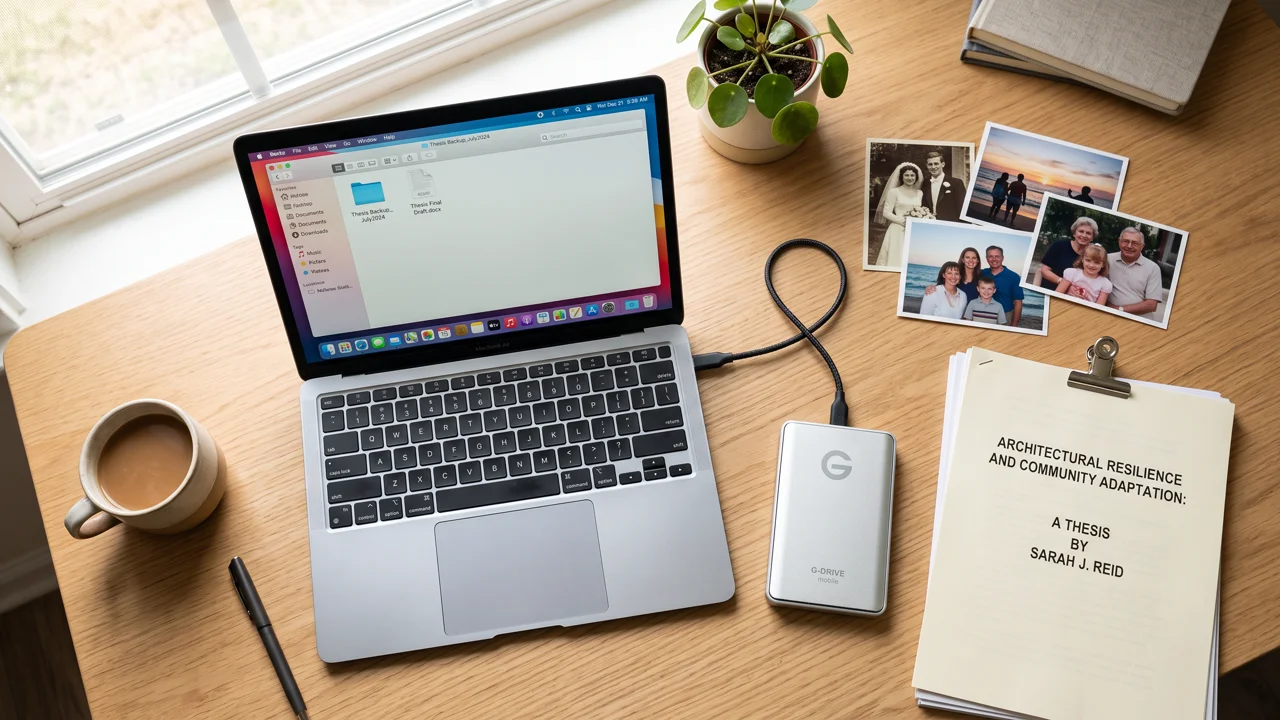
Ask around: every campus has a legend about the student who lost their thesis to a dead laptop the night before the deadline. Don’t be a legend. Follow the 3-2-1 rule: three copies of important files, on two different types of storage, with one copy off-site (cloud storage counts).
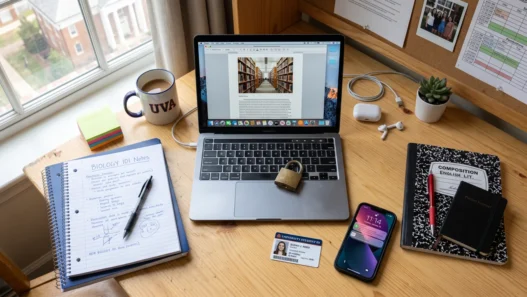
In practice: turn on your cloud backup (Google Drive, iCloud, OneDrive — whichever you already have) and let it sync your documents folder automatically. Then, once a month, copy truly irreplaceable stuff — thesis, portfolio, photos — to an external drive. Ransomware, theft, spilled coffee: backups make all of them annoying instead of catastrophic. If your study setup needs an overhaul anyway, setting up a proper home study space is a good moment to build backup into the routine.
7. Audit what you’re sharing — and with whom
Your digital footprint is a security issue, not just a privacy preference. Attackers build phishing attacks from your public posts: your pet’s name (password hint), your birthday (identity verification), your class schedule (when your dorm room is empty), your new internship (spear-phishing lure). Before posting, ask: would I be comfortable if a stranger used this information?
Do a yearly audit: Google yourself. Check what’s public on your social profiles. Review which apps have access to your Google/Facebook/Apple account and revoke the ones you don’t recognize — old quiz apps and long-deleted games keep their permissions forever unless you cut them off. And lock down location sharing: your running app doesn’t need to broadcast your home address to the internet.
8. Guard your focus like you guard your passwords
This one’s about a different kind of safety: attention security. The same devices you’re protecting are engineered to harvest your focus — infinite scroll, autoplay, notification badges, all of it. A distracted student is more vulnerable to everything above: you’re more likely to click a phishing link when you’re skimming notifications at midnight, more likely to reuse a weak password when you’re in a hurry.
So treat focus tools as safety tools: turn off non-essential notifications (nothing needs to buzz except humans), use a distraction blocker during study sessions, and keep your phone out of the bedroom. Security isn’t just about keeping attackers out — it’s about keeping your own attention from being the weakest link.
The 30-minute weekend project
Here’s your action plan, in order: install a password manager and change your email password (10 min) → enable 2FA on email and university accounts (10 min) → run all pending updates (5 min) → revoke old app permissions (5 min). That’s it. Thirty minutes, once, and you’re more secure than the vast majority of internet users.
The threats will keep evolving, but the fundamentals barely change: unique passwords, second factors, skepticism toward strangers, updated software, and backups. Master those five and you’ve handled the overwhelming majority of real-world risk — leaving you free to focus on the actual reason you’re online: learning things. And if the internet keeps pulling you off task while you’re at it, staying focused while learning online pairs well with everything above.